The short version
for the camera roll- Skip the scrolling. Search your photos app for recipe words like “tbsp” or “preheat,” and the screenshots pop right up.
- Sort them into five kinds: the whole recipe on one screen, a recipe split across a few screenshots, a still from a video, a recipe someone texted you, and the one living in your notes app. Each has its own fix.
- Move the keepers somewhere you’ll actually cook from, like Plated Pages or one notes folder, not back into the camera roll. Write down where each recipe came from (the website or the creator’s name), so you can find the original again. Then delete the screenshot.
- From now on, give new screenshots a week. Save it, cook it or let it go. Your camera roll will thank you.
That recipe screenshot from March. You know the one. It’s somewhere in your camera roll, between a photo of where you parked and 41 photos of your dog (I know, he’s the cutest).
Screenshots are a fine way to grab a recipe and a bad way to keep one. They’re hard to search, they rarely say where the recipe came from, and it often takes three of them to get one whole recipe.
Here’s how to clear them out in 20 minutes, and the small habit that keeps the pile from coming back.
The 20-minute clear-out
- Make an album called “Recipes to sort.”
- Search your photos for “tbsp,” “cups,” “preheat” and “ingredients.”
- Add everything that turns up to the album. Delete exact duplicates as you go.
- Set a timer for 20 minutes and start sorting. When it goes off, stop. No overtime.
Most photo apps can now search the words inside pictures, so one search turns up what an hour of scrolling would miss. It won’t catch them all, so add any stragglers to the album as you come across them.
 the usual suspects
The five kinds of saved recipes, and what to do with each
Go through the album one screenshot at a time. Each one gets a single decision, and “later” isn’t one of the options.
The whole recipe on one screen
Everything you need is right there. It’s just stuck in your camera roll, where you’ll never find it again.
Spot it: the ingredients, the amounts and the steps, all in the shot.

The recipe in three pieces
One blog post, screenshotted as you scrolled. On their own, they make no sense. Together, they’re a recipe.
Spot it: three or four screenshots of the same dish in a row, each one picking up where the last one stopped.
The still from a video
A screenshot of a video is a reminder, not a recipe. The amounts live in the post, a pinned comment or a link, so that’s where to look.
Spot it: a beautiful bowl, a creator’s name in the corner, and no amounts.
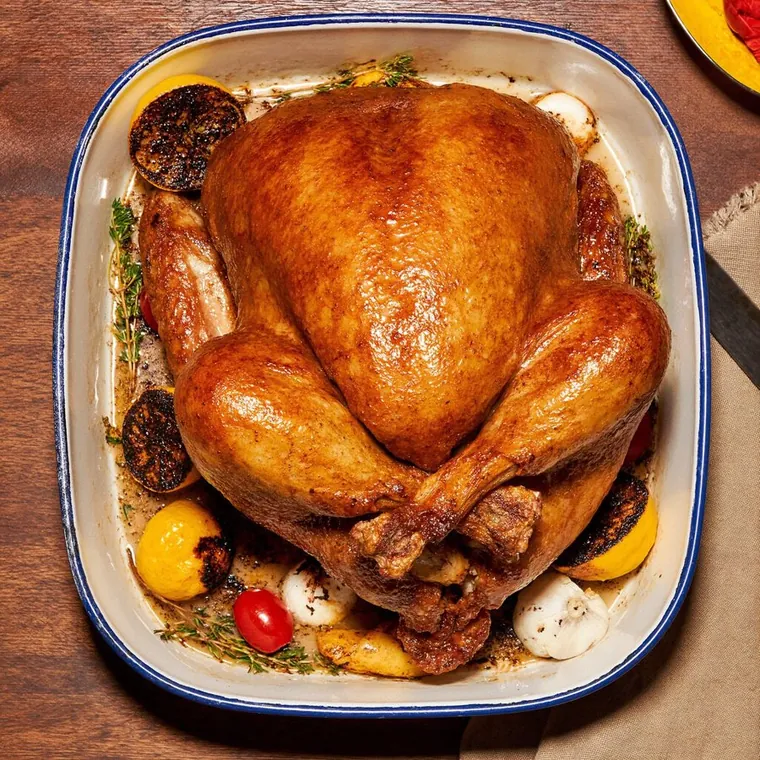
The recipe someone texted you
Your sister’s roast chicken, typed out over four texts with a typo in every one. It’s the real deal. It’s just buried in a group chat.
Spot it: a chat bubble, a name at the top and “ok so first you brown the onions…”
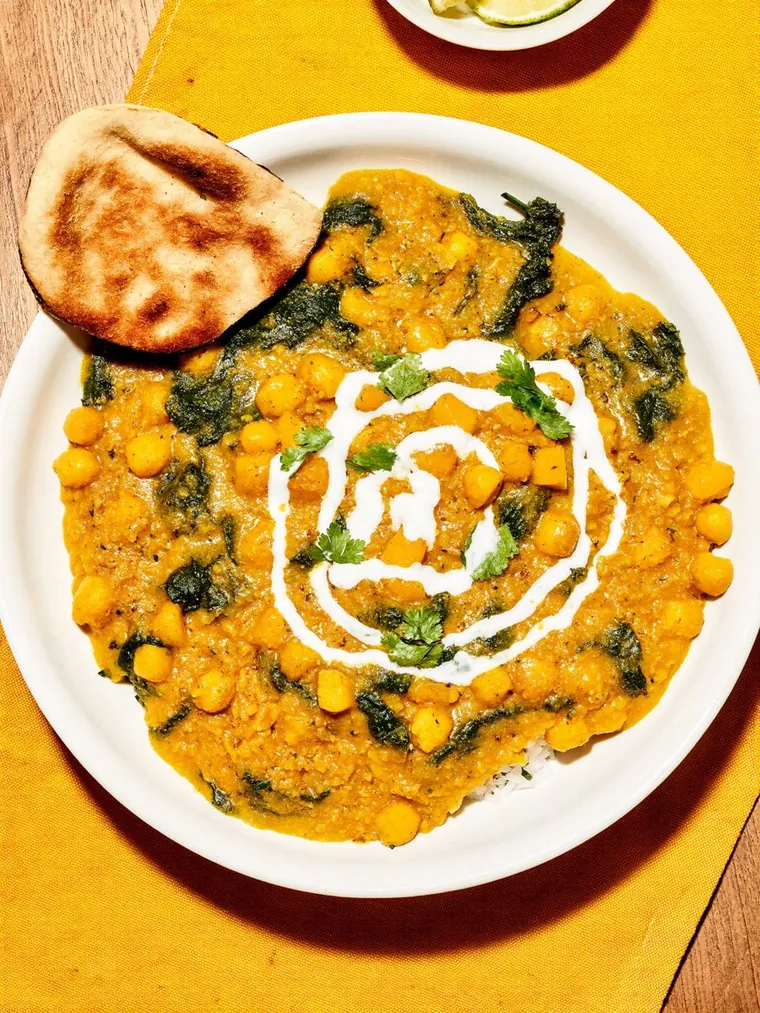
The one living in your notes app
You know the one. The recipe you cook from memory, and every time you make it, you add something. It keeps getting better, and it’s still sharing a notes app with your grocery list.
Spot it: a note called “curry (final FINAL),” wedged between this week’s grocery list and a reminder to call the dentist.
 and the rest
If the screenshot shows…
So it doesn’t happen again
You’ll keep taking screenshots, and that’s fine. It’s the fastest way to grab a recipe. But the ones you end up loving deserve better than a spot between your parking photos and your dog. Give them a home you’ll actually cook from.
- Screenshot it. Make sure the source is in the shot.
- Within a week, save the recipe somewhere you’ll actually cook from, or delete the screenshot.
- Once a month, search your photos for “tbsp,” “cups,” “preheat” and “ingredients” again, and clear out whatever crept back in.
If you wouldn’t cook it this month, you probably won’t cook it this year. You’re allowed to delete it. Nobody will check.
From screenshot to stovetop
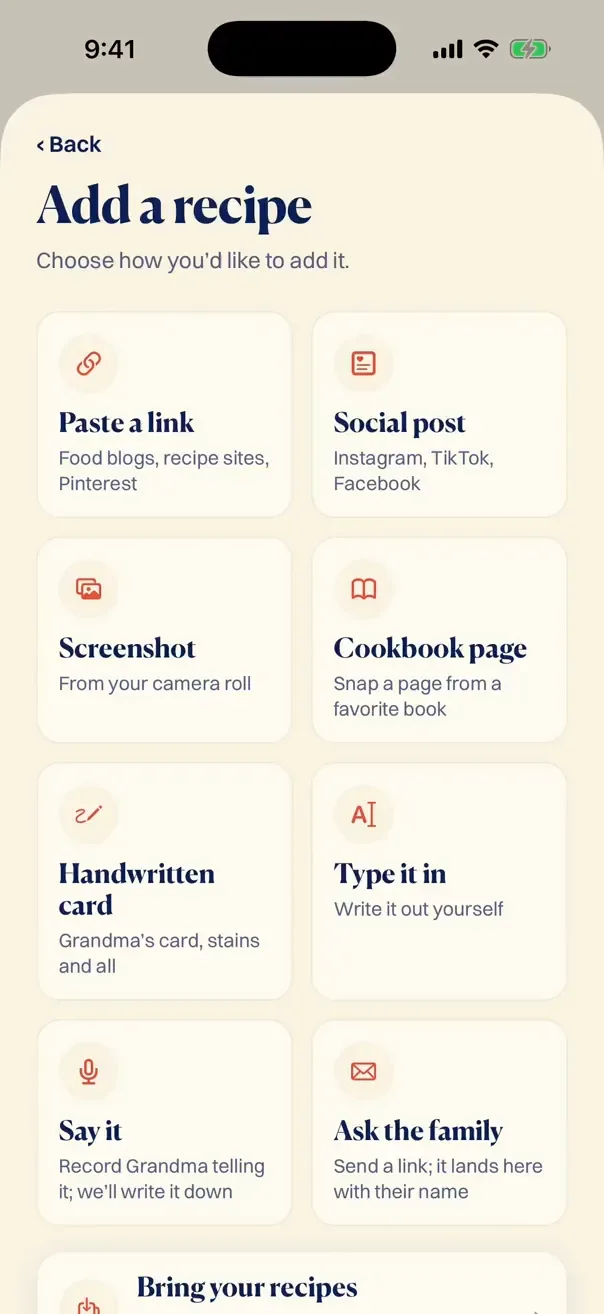
- Pick it from your camera roll. Plated Pages types it up for you, tidy and laid out like everything else you’ve saved.
- Recipe split across a few screenshots? Select them all at once (up to 6) and they become one recipe. Missing a piece? Add another photo before you save.
- Put it on any day of your week. Its ingredients go straight onto one grocery list, sorted by aisle.
that’s it. really.
Questions people ask
Can my phone find recipe screenshots by the words in them?
Often, yes. Many photo apps can now search the text inside pictures, so searching “tbsp” or “preheat” turns up most recipe screenshots. On iPhone, swiping down on your home screen to search finds words in photos too. Results vary, so try a few different words.
Should I delete the screenshot after I copy the recipe out?
Yes, once you’ve copied the recipe and its source. Keeping both is how the camera roll filled up in the first place. The exception is a handwritten card someone sent you. Keep that photo with the recipe.
Is a screenshot album good enough?
For a dozen recipes, sure. Past that, you’re back to scrolling. An album can’t be searched by ingredient, doubled for a crowd or read from across the kitchen. That’s why the ones you love deserve a real home, one you can search and actually cook from.
Is there an app that turns recipe screenshots into recipes?
Yes. In Plated Pages, pick the screenshot from your camera roll, or up to 6 of them for one recipe, and it types up the ingredients and steps for you. Then you can add it to any day of your week, and its ingredients go onto one grocery list.
How do I find where a screenshot came from?
Look for a web address at the top, a creator’s name or a watermark. Then search the dish name along with it. If nothing turns up, keep the recipe anyway and note “source unknown.”